Organizations
Organizations are the top-level containers in Django Email Learning that group courses, learners, and users together. This section provides comprehensive management of organizational structures within your learning platform.
Overview
The Organizations section is accessible via the platform interface at /email-learning/platform/organizations/. This area allows platform administrators to create and manage different organizations, each with their own isolated set of courses, content, and user permissions.
Use Cases
Organizations are particularly useful for:
- Educational Institutions
Create separate organizations for different departments, schools, or campuses, each managing their own curriculum and learners.
- Corporate Training
Set up organizations for different business units, subsidiaries, or regional offices, allowing decentralized course management.
- Multi-Tenant Platforms
Provide completely isolated learning environments for different clients or customers.
Default Organization
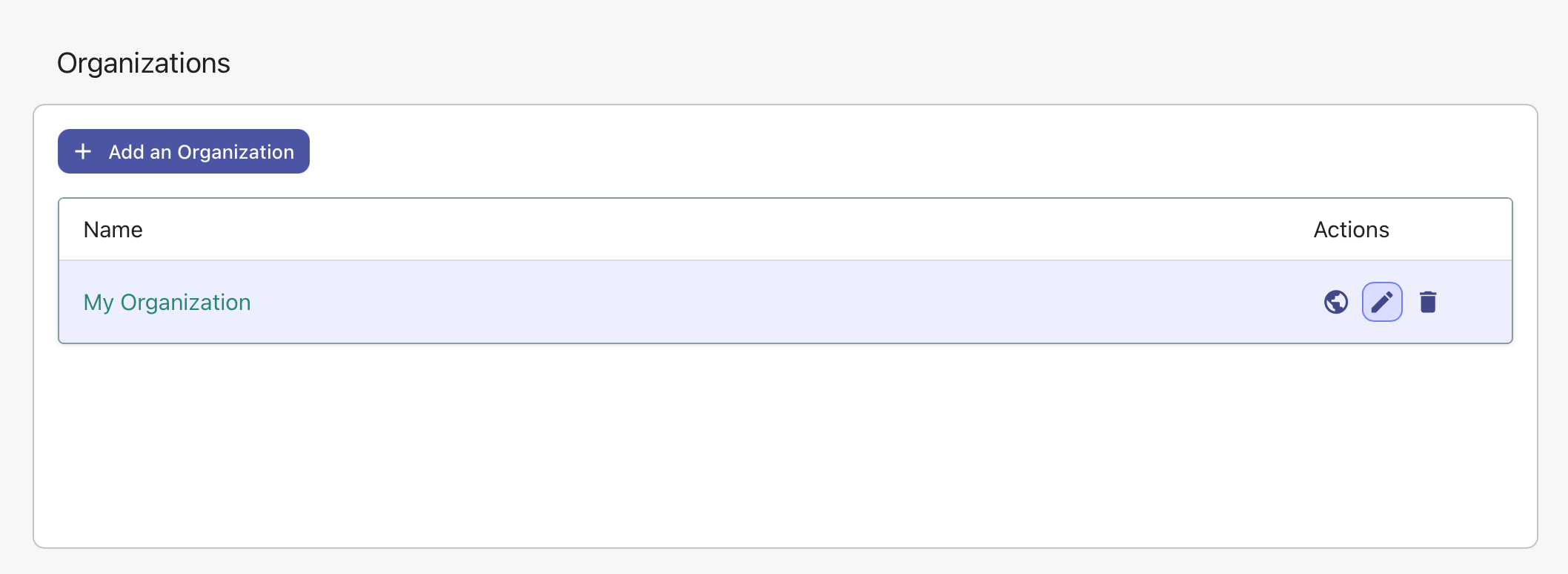
When Django Email Learning is first installed, a default organization called “My Organization” is automatically created. This ensures you can immediately start creating courses without additional setup.
You can: - Rename this default organization to match your needs - Use it as your primary organization - Create additional organizations as your platform grows
Creating Organizations
To create a new organization:
Navigate to the Organizations section
Click the “Add Organization” button
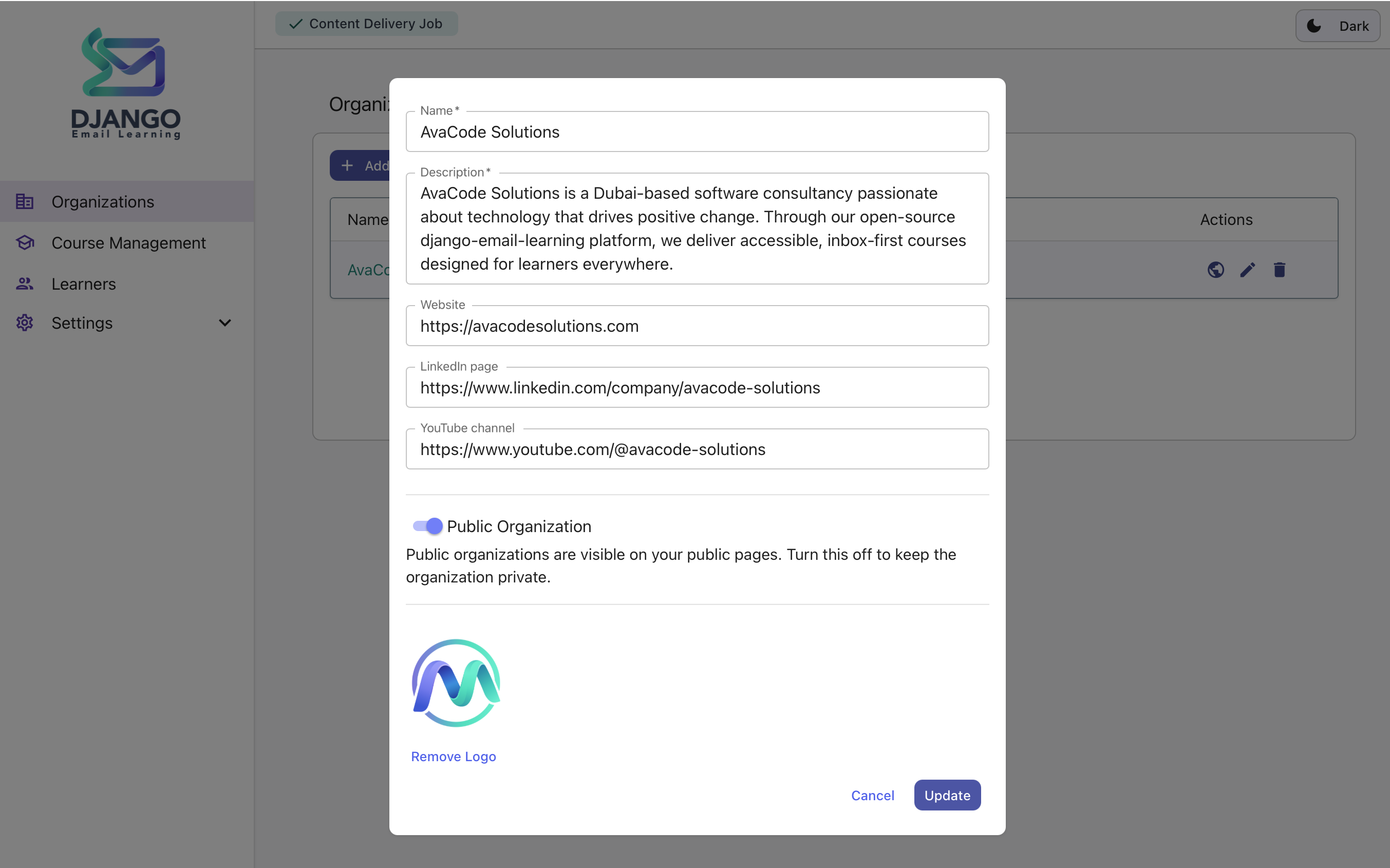
Fill in the required information: - Name: The organization’s display name - Description: A detailed description of the organization’s purpose - Logo: Upload a logo image (optional)
Note
Ensure your Django MEDIA_ROOT and MEDIA_URL settings are properly configured to handle logo uploads.
Managing Organizations
Organization Details
When editing an organization, you can modify:
- Basic Information
Organization name and description
Logo image (supported formats: JPG, PNG, GIF)
Organization Actions
Each organization in the table displays three action icons:
Icon |
Action |
Description |
|---|---|---|
🌐 Globe |
Public View |
Opens the organization’s public enrollment page where learners can discover and enroll in available courses. This page is accessible without authentication. |
✏️ Edit |
Edit Organization |
Opens the organization edit form where you can modify name, description, logo, and other settings. |
🗑️ Delete |
Delete Organization |
Permanently removes the organization and ALL associated data including courses, learners, enrollments, and content. This action cannot be undone. |
Warning
Deletion is Permanent: Deleting an organization removes all associated courses, learner data, enrollments, and content. Ensure you have backups before proceeding with deletion.
Organization Users and Roles
Organizations support role-based access control with three permission levels:
- Admin Role
Full access to all organization features
Can create, edit, and delete courses
Manage learners and enrollments
Modify organization settings
Assign roles to other users
- Editor Role
Create and modify courses
Manage course content and lessons
View and manage learner enrollments
Cannot modify organization settings or user roles
- Viewer Role
Read-only access to courses and learner data
Can view reports and analytics
Cannot create or modify any content
Cannot access organization settings
Creating Organization Users
To add a user to an organization: 1. Open the organization details page by clicking its name in the organizations list. 2. You will see the “Organization Users” list, and also a button to add new users. 3. Click the “Add User” button to open the user creation form. 4. Enter the user’s email address and select their role (Admin, Editor, Viewer). 5. Click “Add User” to create the user and send them an invitation email with the instruction to set their password.
Note
If the email address already exists in the system, the existing user will be added to the organization with the specified role.
Important
Django email learning uses Django Auth built-in URLs and views for password resets. Ensure that you have configured those URLs and views correctly in your Django project settings. please check the official Django documentation for more details: https://docs.djangoproject.com/en/6.0/topics/auth/default/#module-django.contrib.auth.views
Public Organization Pages
Each organization has a public page accessible at:
/email-learning/public/organization/<organization_id>/
This page: - Lists all publicly available courses for the organization - Allows anonymous users to enroll in courses - Displays organization branding (name, logo, description) - Provides course enrollment forms and information