Learner Management
Overview
The learners section is accessible to users with appropriate permissions and allows you to:
View all learners enrolled in your organization’s courses
Search and filter learners by email
Monitor individual progress and performance
Learner Discovery
- Search Functionality
Use the search bar to quickly find learners by email address. This is particularly useful for large organizations with many enrolled learners.
Individual Learner Details
Clicking on any learner’s email address opens a detailed view providing comprehensive information about their learning journey.
- Course-Specific Progress
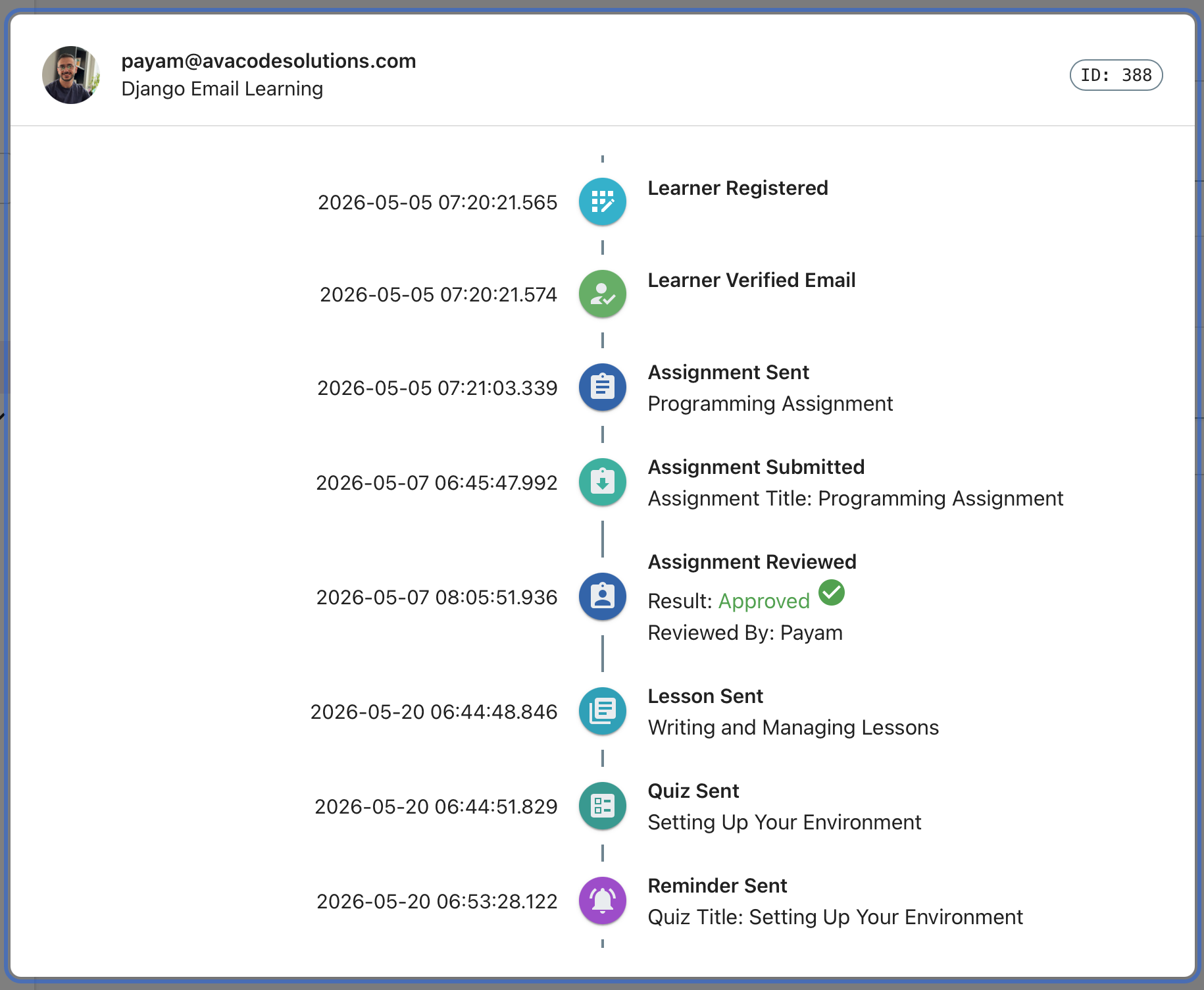
For each enrolled course, you can access: - Content Progress: Which lessons have been delivered and viewed - Quiz Performance: Scores, attempts, and completion status - Timeline View: Chronological learning activity
- Branching Courses
On a course with routing rules, the enrollment view also shows Path taken — the content the learner has been sent or is scheduled to receive, grouped by track — and learners are not shown a progress percentage. The progress shown here is measured against the learner’s own route, so it can go down when they are routed onto a longer track. See Branching Courses for details.
Sending the Next Content Immediately
Under the course title, the enrollment view shows the learner’s next scheduled content delivery — when it is due and which content it is. Organization admins also get a send now link next to it.
send now delivers that one content straight away, exactly as the delivery job would have when its time arrived: the email is sent, the delivery is recorded against the enrollment, and the course moves on — the next content is scheduled, or the enrollment is completed if that was the last one. Simply editing the schedule’s time would not have the same effect, since the delivery job runs on a schedule of its own and the content would still wait for its next run.
A few things worth knowing:
Only deliveries that are still scheduled can be sent this way. A delivery that has already gone out, was canceled, or is blocked shows no link.
If the delivery job happens to pick up the same delivery at that moment, only one of the two sends it — the other reports that the delivery is no longer scheduled.
If sending fails, the delivery is retried or blocked by the same rules that apply during a job run, and the dialog reports that the content could not be sent.
The action is restricted to organization admins. Other roles see the scheduled delivery but no link.
Cancelling an Enrollment
Organization admins can end a learner’s enrollment from the enrollment view, using the Cancel enrollment button in its header. It appears only while the enrollment is still running — an enrollment that has already been completed or deactivated shows no button, and only admins see it at all.
Cancelling does two things: the enrollment is deactivated with the reason revoked, and every content delivery still scheduled for that learner is canceled, so nothing further arrives in their inbox. A delivery that is being sent at that very moment is left alone — that email is already on its way. The learner is not notified.
The reason is deliberately distinct from canceled, which is what an enrollment gets when the learner unsubscribes themselves. Both end the enrollment, but the enrollment timeline and the user_enrollment_deactivated metric keep them apart, so “we cut this learner off” never looks like “this learner opted out”.
The action cannot be undone — the enrollment state machine has no transition out of deactivated — so it asks for confirmation first. The learner can, however, be enrolled in the same course again afterwards, which creates a fresh enrollment and leaves the cancelled one in place as a record.
Behind the button is an admin-only endpoint, POST /api/platform/organizations/<id>/enrollments/<id>/cancel/. An enrollment that reached a final state in the meantime returns 409 and is left exactly as it was.
Unlocking a Gate
A learner held at a gate shows as Waiting at gate in the learners list and in the enrollment view. Organization admins can choose Unlock next to the gate to let them continue, the same as an unlock through the API. The timeline records the unlock and who made it.
Behind the button is an admin-only endpoint, POST /api/platform/organizations/<id>/enrollments/<id>/gates/<course_content_id>/unlock/. Unlocking a gate that is already unlocked changes nothing; an enrollment that has ended returns 409.
Confirming an Enrollment
In a course with an enrollment gate, an enrollment waiting to be confirmed shows as Waiting at the enrollment gate in the learners list, rather than Unverified, and in the enrollment view. Organization admins can choose Confirm enrollment in the enrollment view, the same as unlocking the enrollment gate through the API.
Once it is confirmed, the timeline shows Enrollment Confirmed with how: Confirmed through the API, or Confirmed by the admin who did it. An enrollment the learner verified through their link still shows Learner Verified Email.
In a course confirmed by email link, an unverified enrollment shows a Verify enrollment button to organization admins instead, for a learner who can’t use their verification link. The enrollment becomes active, the learner is sent the welcome email and their first content is scheduled, without the learner following the link, so only do it when you know the address is theirs. The timeline shows Enrollment Confirmed with Confirmed by the admin, rather than Learner Verified Email.
Both buttons use the same admin-only endpoint, POST /api/platform/organizations/<id>/enrollments/<id>/confirm/. Confirming an enrollment that is already active changes nothing; an enrollment that has ended returns 409.
Opening the First Email
The first email a learner is sent as they enroll, the verification email or a gated course’s enrollment email, carries a tracking pixel. The first time the learner opens it, the timeline shows Opened Enrollment Email, saying which of the two it was. Which email was sent is recorded as it goes out, so the label stays right if the course later changes how it confirms enrollments.
If the learner is sent a reminder because their enrollment is still unverified (see the send_enrollment_reminders command), the timeline shows Enrollment Reminder Sent. It also shows Opened Enrollment Reminder the first time they open it. Both say whether it was the verification reminder or a gated course’s enrollment reminder. Like every open-tracking pixel, it is only recorded when the learner’s email client loads images, so a missing open doesn’t mean the email went unread.
Learner Capacity
You can cap the number of learners an organization is allowed to enroll. This applies across every enrollment path — the platform UI, the public enrollment page, Google Workspace group enrollment, and IMAP-based enrollment.
Configuration
The cap is nested under DJANGO_EMAIL_LEARNING in your Django settings:
DJANGO_EMAIL_LEARNING = {
"LEARNERS": {
"MAX_LEARNERS_PER_ORGANIZATION": 500, # default: 0 (unlimited)
},
...
}
MAX_LEARNERS_PER_ORGANIZATION sets a global cap applied to every organization. A value of 0 (the default) means unlimited. A learner who is already enrolled somewhere in the organization is never blocked by the cap — it only applies when a new learner would be created.
The cap only counts distinct learners with at least one active enrollment (EnrollmentStatus.ACTIVE). Learners with no enrollment, or only unverified, completed, or deactivated enrollments, don’t count against it — and a learner active in multiple courses only counts once.
When the cap is reached, new enrollment attempts fail with a 403 response and no Learner record is created.
Per-organization overrides
If you need a different limit per organization (e.g. tiered plans), set LEARNERS_CAP_RESOLVER to the dotted path of a callable that receives the Organization instance and returns its cap:
DJANGO_EMAIL_LEARNING = {
"LEARNERS": {
"LEARNERS_CAP_RESOLVER": "myapp.capacity.get_learners_cap",
},
...
}
# myapp/capacity.py
from django_email_learning.models import Organization
def get_learners_cap(organization: Organization) -> int:
# e.g. look up a per-organization quota from your own billing/plan model
return organization.plan.max_learners
When LEARNERS_CAP_RESOLVER is set, it takes precedence over MAX_LEARNERS_PER_ORGANIZATION for every organization.
Checking capacity without enrolling
Organization.can_enroll_learner() returns whether the organization currently has room for another learner. It’s used to:
Include a
can_enroll_learnerboolean in the platform’s organization API responses (GET/POSTon the organization detail endpoint), so the admin UI can disable the “add learner” action without exposing the actual cap or learner count.Include an
enrollmentOpenboolean in the public organization and course page context (appContext), so the public enrollment form can disable itself.