Course Management
The Course Management section is the heart of Django Email Learning, where you create, organize, and manage your educational content. This comprehensive interface allows you to build structured learning experiences that are delivered to learners via email over time.
Overview
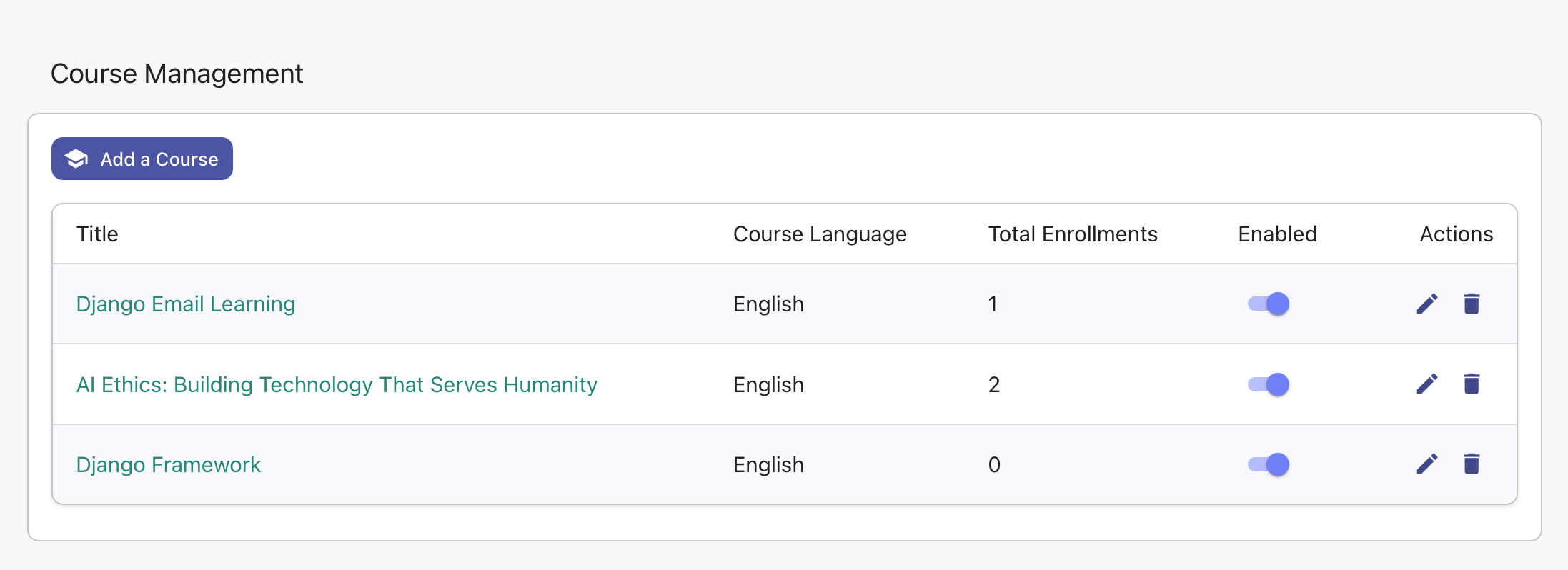
The course management page displays all courses within your selected organization. You can switch between organizations using the sidebar if you have access to multiple organizations with appropriate permissions.
Course List Features
The courses table provides an overview of all your courses with the following information:
Course Title: Click to access the course detail page
Slug: URL-friendly identifier used in public enrollment pages
Status: Shows whether the course is enabled (visible for enrollment) or disabled
Actions: Edit, enable/disable, and delete course options
Clicking on any course name navigates to the course detail page where you can manage lessons, quizzes, content ordering, and delivery scheduling.
Creating a New Course
To create a new course:
Click the “Add Course” button at the top of the courses list
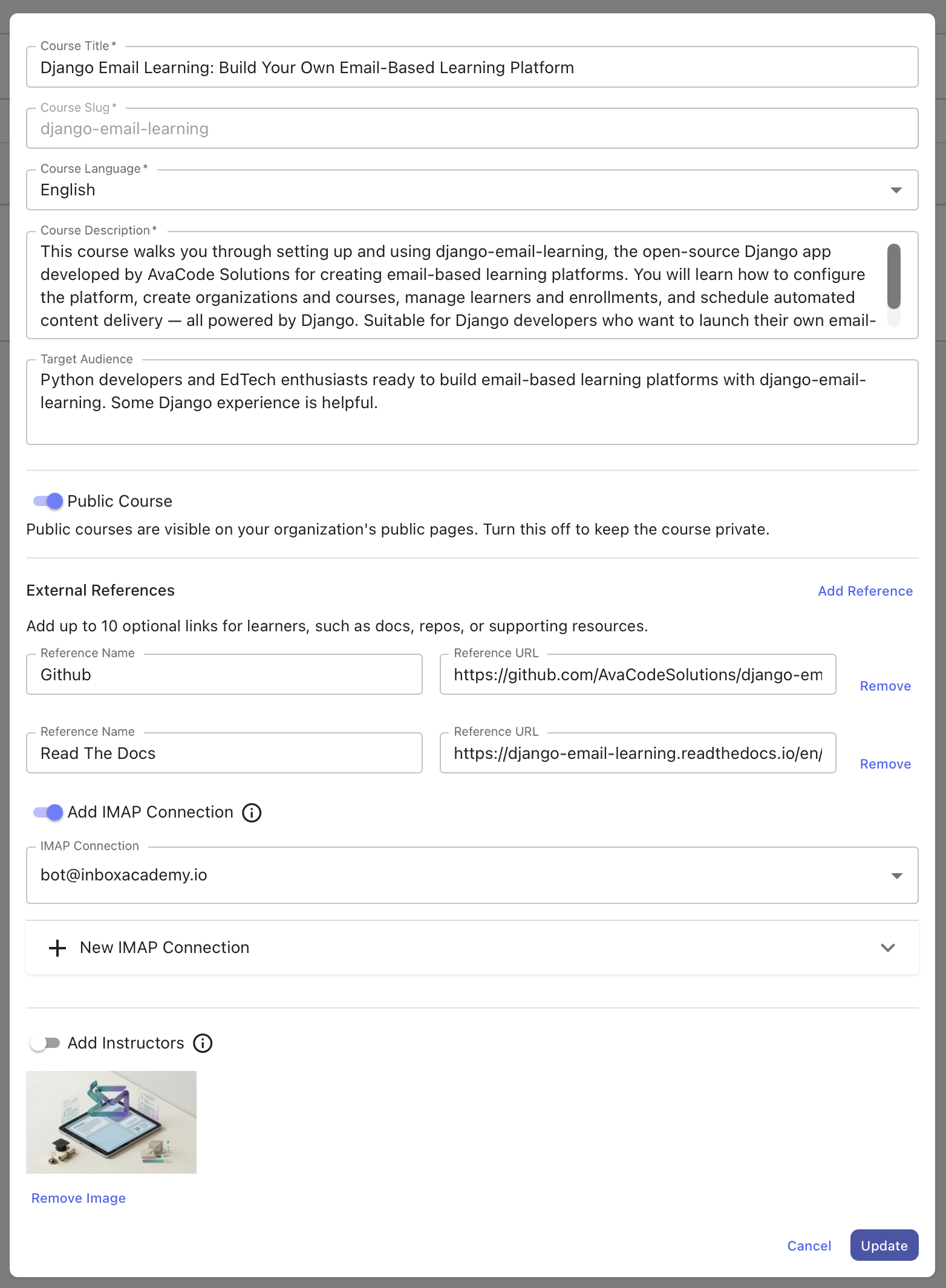
Fill out the course creation form with the required information
Save to create your course foundation
Course Fields
- Title (Required)
The display name of your course. This appears to learners in enrollment pages and email communications.
- Description (Required)
A comprehensive overview of what the course covers, learning objectives, and what learners can expect. This description is shown on public enrollment pages.
- Slug (Required)
A URL-friendly identifier that must be unique within your organization. This is used in enrollment URLs and should be descriptive but concise (e.g., “intro-python-programming”).
- IMAP Connection (Optional)
If you want your learners to be able to interact with the course via email, you can set up an IMAP connection. This allows learners to enroll or unsubscribe from the course via email without visiting the platform.
Course Status Management
Courses have two states that control their visibility and enrollment availability:
- Enabled Courses
Visible on public organization pages
Allow new learner enrollments
Continue delivering content to existing enrollments
- Disabled Courses
Hidden from public enrollment pages
Block new enrollments
Will continue serving existing enrollments
Use the toggle switch in the courses table to quickly enable or disable courses as needed.
Managing Course Content
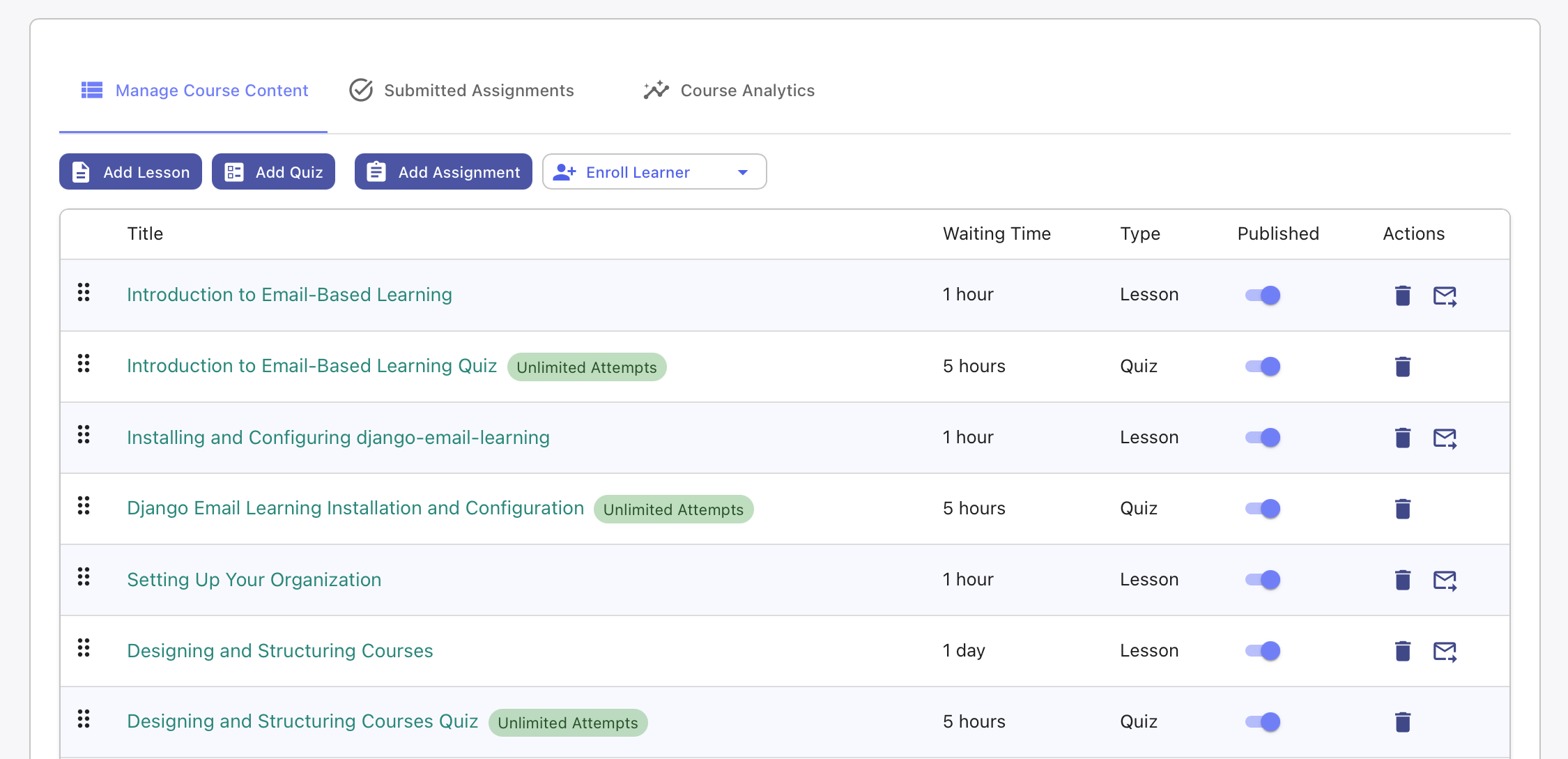
Once your course is created, navigate to the course detail page to build your learning experience with lessons and quizzes.
Content Types
- Lessons
Educational content delivered via email, including text, instructions, exercises, and learning materials.
- Quizzes
Interactive assessments that test learner comprehension and progress, with automatic scoring and progress tracking.
Content Management Actions
- Adding Content
Click “Add Lesson” to create educational content
Click “Add Quiz” to create assessments
Each piece of content can be scheduled for delayed delivery
- Organizing Content
Use drag-and-drop interface to reorder content
Content order determines delivery sequence
Consider learning progression and difficulty curve
- Scheduling Delivery
Set delays (in days) between content pieces
Allow time for learner reflection and practice
Balance engagement with overwhelming frequency
Creating Lessons
Lessons form the core educational content of your courses. To create a lesson:
Navigate to the course detail page
Click “Add Lesson”
Configure lesson properties and content
Lesson Configuration
- Title
Clear, descriptive lesson name that indicates the learning focus
- Content
The main educational material delivered to learners. Can include: - Text-based instruction and explanations - Exercises and practice activities - Reading assignments and resources - Code examples or case studies
- Delivery Delay
Time delay (in days) after the previous content before this lesson is sent. Consider: - Learner processing time - Content complexity - Practice and reflection needs
Creating Quizzes
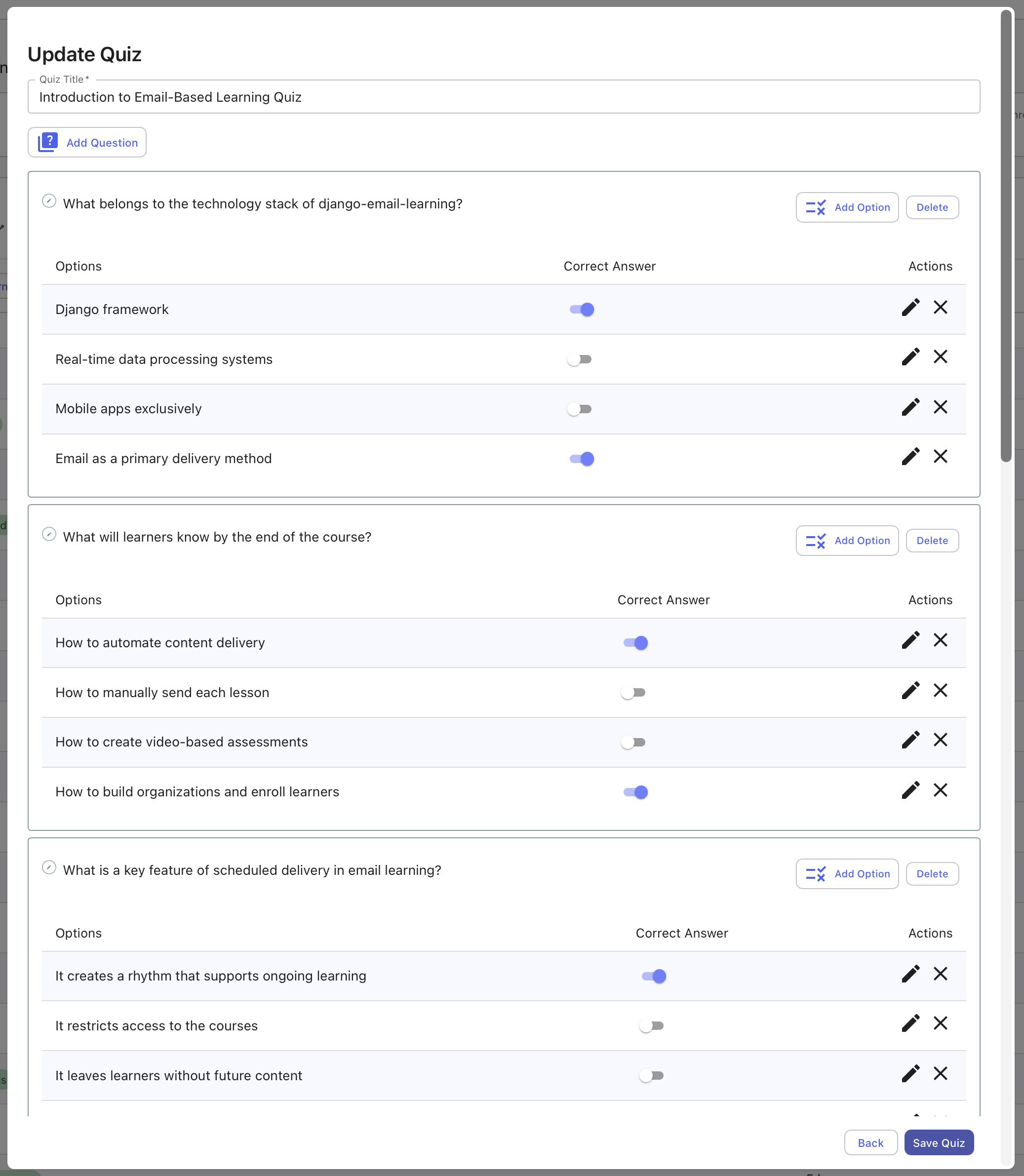
Quizzes provide assessment and engagement opportunities within your courses. They help measure learner progress and reinforce key concepts.
Quiz Configuration
Basic Settings
- Title
Descriptive name for the quiz that indicates the assessment focus
- Questions and Answers
Add multiple-choice questions with various answer options
Select one or more correct answers per question
At least one correct answer must be specified for each question
Support for multiple correct answers per question
Delivery Settings
- Waiting Period
Delay time before the quiz is sent to learners: - Can be specified in days or hours - Consider content absorption time - Balance with course pacing
Assessment Criteria
- Passing Score
Minimum score (percentage) required to pass the quiz: - Learners must achieve this score to continue - Failed attempts allow retakes (up to 2 total attempts) - After 2 failed attempts, enrollment is deactivated
- Selection Strategy
Choose how questions are presented to learners:
- All Questions
Every learner receives the same questions
Consistent assessment experience
Suitable for standardized learning objectives
- Random Questions
Different question sets for each learner
Reduces cheating opportunities
Provides variety in retake attempts
Requirement: Quiz must have at least 6 questions
- Deadline (Future Feature)
Time limit (in days) for quiz completion: - Currently not enforced by the platform - Reserved for future release functionality - Plan your quiz timing accordingly
Note
Quiz Attempts: Learners have up to 2 attempts to pass each quiz. If they fail both attempts, their enrollment is automatically deactivated to maintain course quality standards.
Warning
Random Selection Requirements: When using random question selection, ensure your course has at least 6 questions to provide sufficient variety for different learners and retake scenarios.
Customising Course Creation Access
CourseView exposes a can_create_course(request, organization_id) hook that you
can override in a subclass to add custom logic — for example, enforcing a per-organisation
course limit based on a subscription plan:
from django_email_learning.platform.api.views import CourseView
from myapp.models import OrganisationPlan

class LimitedCourseView(CourseView):
    def can_create_course(self, request, organization_id: int) -> bool:
        plan = OrganisationPlan.objects.get(organization_id=organization_id)
        return plan.course_count < plan.max_courses
Wire LimitedCourseView into your URL conf in place of CourseView.
When can_create_course returns False, the API responds with a 403 before
any database work happens. The default implementation always returns True, so
behaviour is unchanged for users who do not override the hook.
Knowing the current state after a mutation
The create course (201) and delete course (200) responses both include a
can_create_course boolean field, evaluated after the operation completes:
{
  "id": 42,
  "title": "Python Course",
  "...",
  "can_create_course": false
}
This allows the frontend to update its UI (e.g. disable the Add Course button) immediately after a create or delete, without an extra round-trip.